Data Entry SAS
Entering data in SAS Studio.
The format of entering data into SAS begins with the “data” command where you create the name of your data. Then comes the “input” command where you create the names of your variables. Next is the “cards” command which is an introduction that says ‘Hey, here’s the data!’. Then the actual data is entered. And finally a “run” command indicates the data entry is complete.
Let’s say we have data for an experiment where we are trying to determine if a person’s age influences the number of tries it takes them to complete a task. In this situation we call our independent variable Age and our dependent variable Attempts.
By default, the ‘input’ command specifies that our first column of data will be Ages and the second column of data is Attempts (following the order of the input statement).
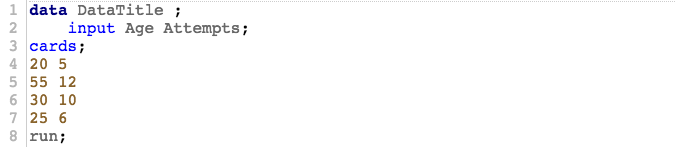
Now let’s say we want the data to be expressed in a more compact manner. The ‘@@’ command added to the end of the ‘input’ statement indicates the data will be read differently. The data will now be read one Age value then one Attempt value so on. It is easier to read the data by putting a double space between the age and attempt pairings however it is not necessary.

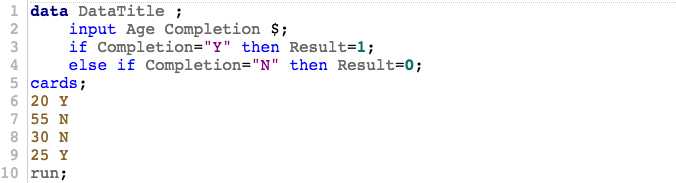
What if the experiment was changed a little? Instead of being continuous let let’s say the independent variable was discrete. So, the subjects were given an allotted time to complete the task at the end of the time, either a YES or No was recorded depending if they completed the task.
Now we have the variables Age and Completion. We need to specify that Completion is a non-numeric value by following the variable name with the ‘$’ command. In this case we have created a new variable named Result which represents the dummy variable.
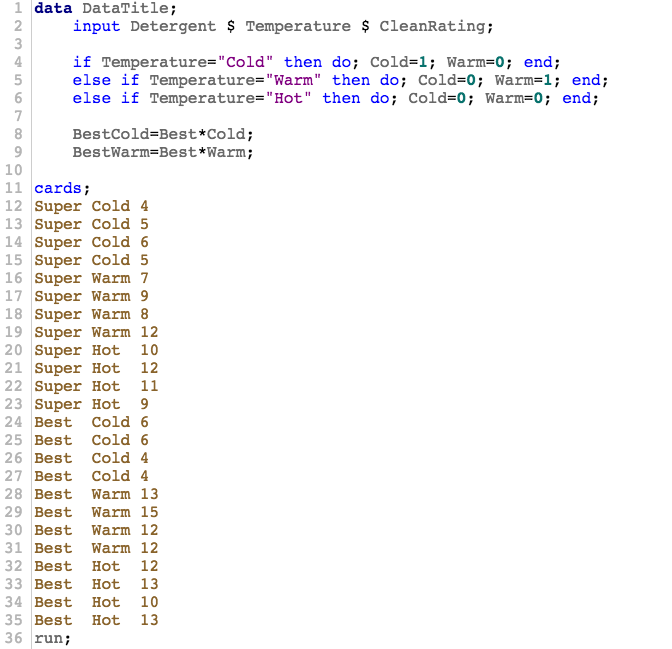
In another example we are comparing two laundry detergent brands: Best and Super. We are measuring the clean rating after being washed in cold, warm, and hot water.
In this instance of data entry, we have five variables in total. We entered data for Detergent and Temperature which we specified as non-numeric values and CleanRating. The other two variables BestCold and BestWarm were created as interaction variables. You could create your interaction variable here and give it a name or in your ‘proc’ statement when you specify your model.
Also note we have three conditions that need to be dummy coded for. There are a few differences in the syntax between having two in our previous example and 3 or more. Firstly, ‘then’ needs to be ‘then do;” and second, all condition lines need to be ended with ‘end’.
Another way to enter the data is below. This way looks much simpler but the way you enter the data depends on the kind of output you want. This method of entry is good for “proc glm” commands. The “proc glm” command does not need you to specify the dummy coding because it will do it for you. On the other hand, the “proc reg” command does not create the dummy variables. So, when you will be interested in a “proc reg” output you need to enter the data like above with the dummy coding specified.
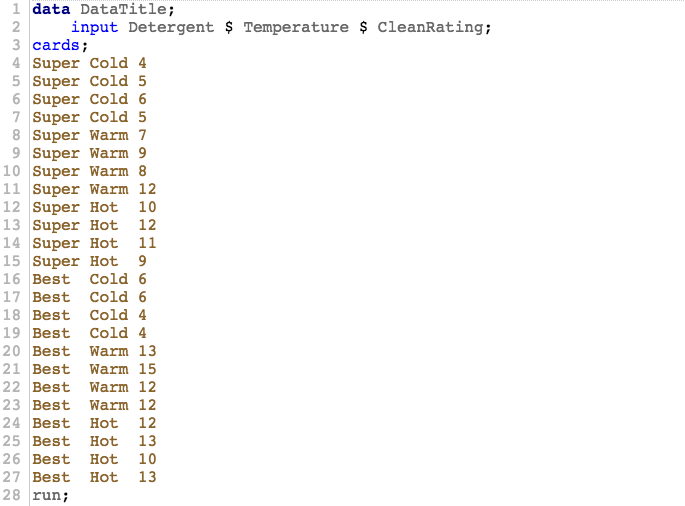
The most important thing to take away is that data entry can be tailored to your needs. If you know what commands you’ll use and information you would like to extrapolate, you can enter your data in such a way that it will make your goals simpler to attain.
